Google Workspace Integration
This guide explains how to integrate Google Workspace with OpenClaw Ultra using GoG CLI.
Supported Services
| Service | Capabilities |
|---|
| Gmail | Read, send, search, organize emails |
| Calendar | Events, schedules, reminders |
| Drive | File management, sharing, search |
| Docs | Create, edit, format documents |
| Sheets | Spreadsheet operations, data queries |
| Slides | Create and edit presentations |
| Contacts | Manage and sync contacts |
| Tasks | Create and track tasks |
Prerequisites
| Item | Requirement |
|---|
| OpenClaw Ultra | Installed and configured |
| Google Account | Active Gmail/Workspace account |
Step 1: Install GoG CLI in OpenClaw Ultra
- Open OpenClaw Ultra and start a new chat
- Ask the agent to install GoG CLI:
Install GoG CLI for Windows
- The agent will help you download from the official release and add it to your system PATH
- Verify installation:
gog --version
Step 2: Create OAuth Client
- Visit Google Cloud Console
- Create a new project
- Enable required APIs (Gmail, Calendar, Drive, Docs, Sheets, Slides, Contacts, Tasks) - whatever you actually need
- Configure OAuth consent screen for “External”
- Create a Desktop app OAuth client at OAuth clients
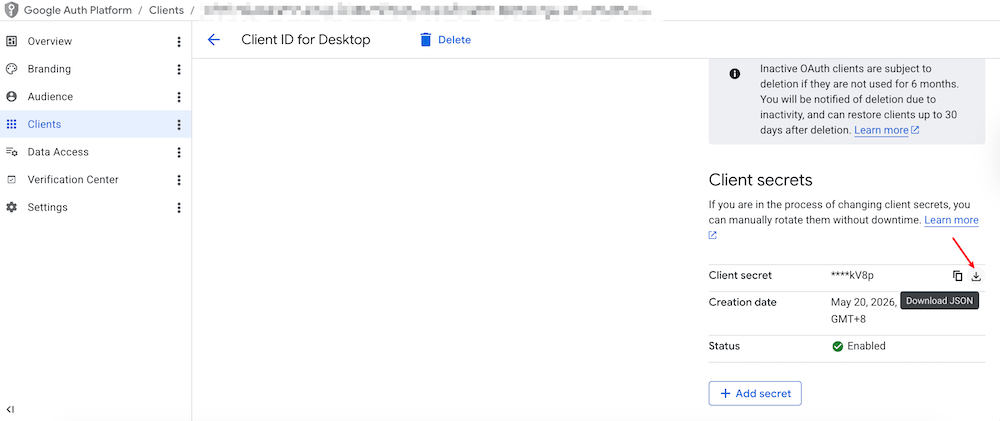
- Download the JSON file and save it to a safe location
—
Showing 4/8 sections. Full content: https://openclaw.aiondesktop.com/tutorials/10